Configuring iDempiere within Eclipse
info
This procedure is intended for technical users configuring iDempiere to run inside Eclipse.
Configuring
To run iDempiere from within Eclipse you must configure parameters first. This is done by running a preconfigured application called install.app.
- Open Eclipse.
- Navigate to Run > Run Configurations > Eclipse Application.
- Select
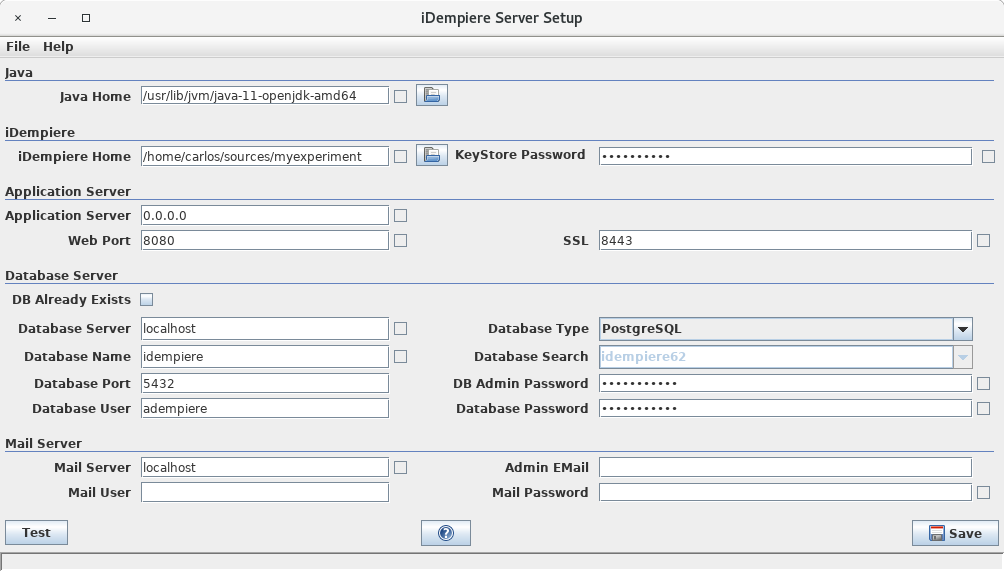
install.appand click Run. - Fill the parameters as shown in the screenshot, or with your own preferred values.
Important Parameters
- iDempiere Home: This is the repository folder.
- Web Port / SSL: Be careful not to use a port already used by another application.
- On Linux, ports below
1000cannot be used by non-root users. - On some systems, port
8080is sometimes used by Oracle-XE.
- On Linux, ports below
- DB Already Exists: Check this flag because the database was already imported.
- Database Name: Fill with the database name created in Importing DB Seed Manually.
- DB Admin Password: This can be left empty when DB Already Exists is marked.
- If you fill it, use the postgres password.
- Database Password: Fill with the password you provided when creating the
adempiereuser.
Alternative Console App
There is another application that can be used too, called install.console.app. Instead of opening a window, it asks parameters from the keyboard in the Eclipse console tab.
This How-To is brought to you by Carlos Ruiz from BX Service GmbH. Feel free to improve directly or suggest using the Discussion tab.