iDempiere Extension Management
- Goal: Technical
- Developer: hengsin(TrekGlobal)
- Feature Ticket: IDEMPIERE-6908
🚀 Features
- Centralized Registry: Tracks all installed extensions and their current versions.
- Dependency Resolution: Automatically validates requirements and dependencies before installation.
- Extension Lifecycle Control: Provides services to install, uninstall, enable and disable dynamically.
- Metadata Integration: Parses and processes
metadata.jsonandinfo.mdfiles to provide a rich UI experience for administrators. - Secure Downloads: Manages secure retrieval of artifacts from remote repositories and verifies checksums.
📦 Changes
- New Metadata Tables:
AD_Extension: to store name, id, version and metadata of an extension. This includes external and bundled extensions (differentiated by thebundledflag).AD_ExtensionEntity: to store database entity that belongs to an extension. This is used to disable/enable the corresponding database entities when user disables/enables/uninstalls an extension.
- New Form:
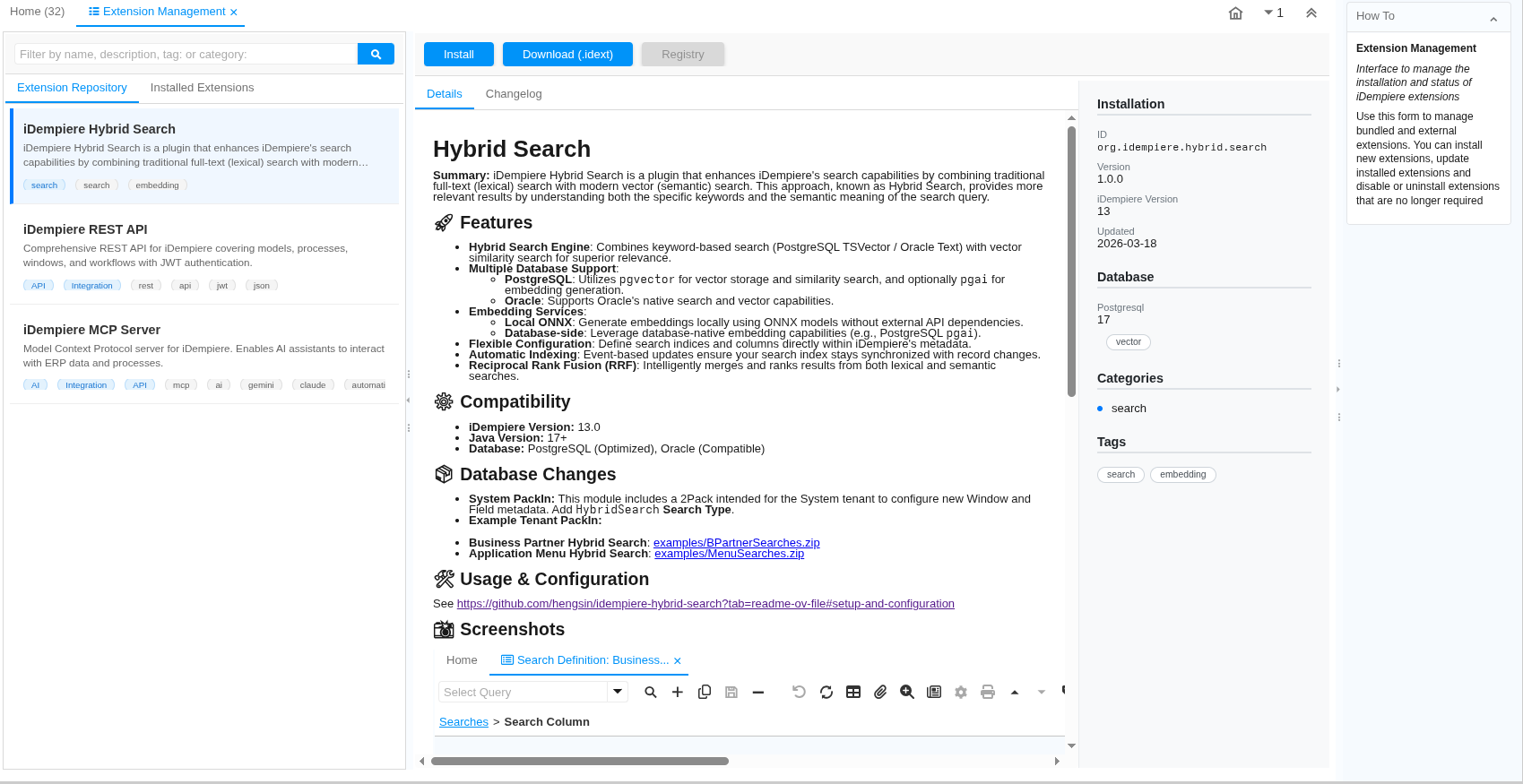
Extension Management: Form to browse and manage extensions from remote extension repository, extensions that have been installed locally and extensions that's bundled with the application.
- New Window:
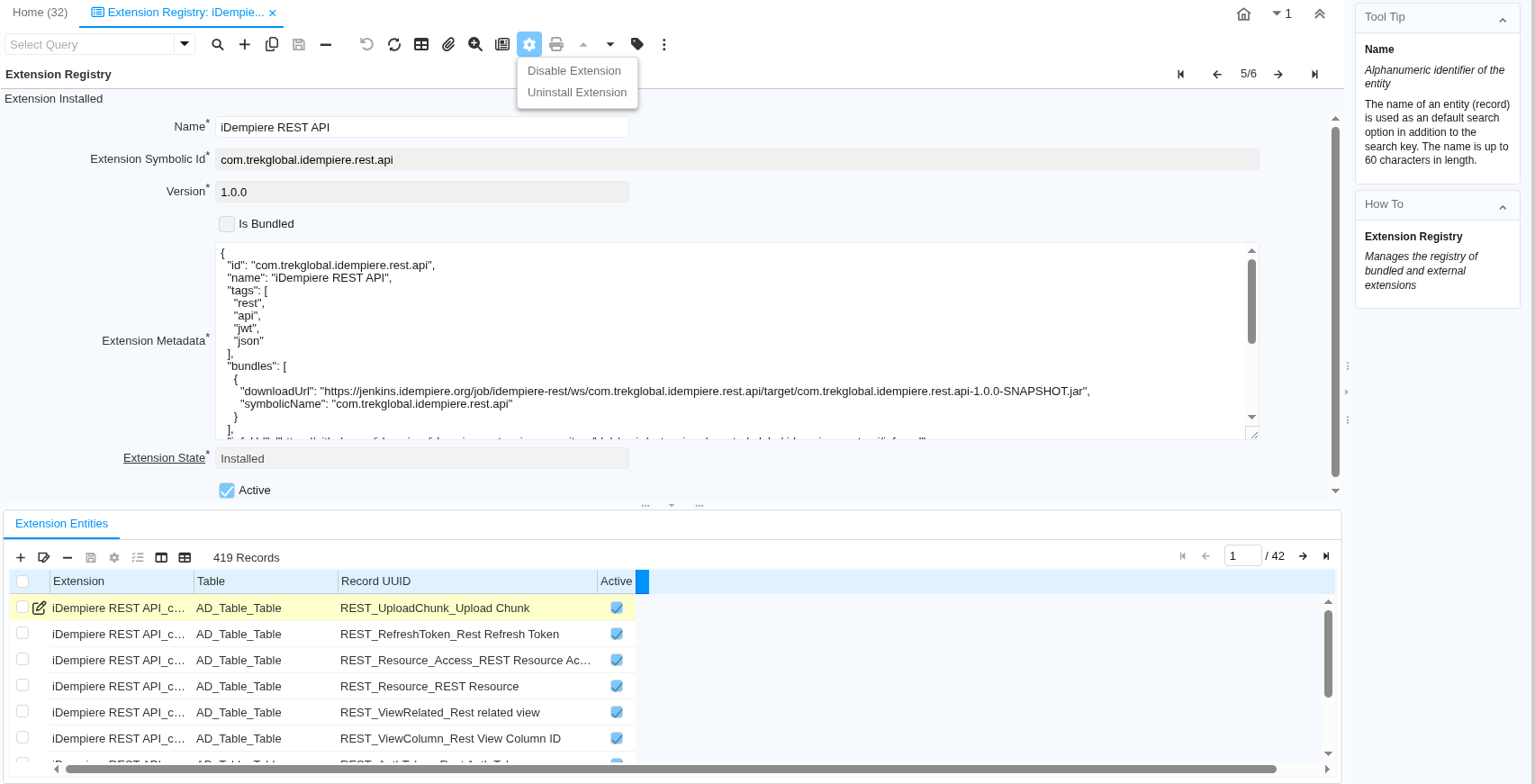
Extension Registry: Window to view and manageAD_ExtensionandAD_ExtensionEntity.
- New Process:
Install Extension: Install remote extension.Uninstall Extension: Uninstall locally installed extension.Disable Extension: Disable installed extension.Enable Extension: Enable an extension that have been disabled.- Invoke from the
Extension Managementform orExtension Registrywindow.
- System Property: Adds new System Property
IDEMPIERE_EXTENSION_REPOSITORYto define default extension repository URLs. - Default Extension Repository:
- https://github.com/idempiere/idempiere-extension-repository/
- See README.md at the site on how to submit new extension.
- Structure and metadata of an extension: https://github.com/hengsin/idempiere-extension-repository-template/blob/main/extension-spec.md
- Extension Repository Template:
- https://github.com/hengsin/idempiere-extension-repository-template/
- Template to create a new extension repository.
🛠 Usage & Configuration
-
Configuration:
- Configure the Extension Provider URL using the
IDEMPIERE_EXTENSION_REPOSITORYSystem Property to point to a compatible metadata repository. For local development/testing, you can usefile:///path/to/your/extension-repository/instead of a remote repository hosted at GitHub.com. - Access the configured extension repository via the Extension Management form.
- View and manage installed extensions at the Extension Registry window.
- Configure the Extension Provider URL using the
-
Extension Management Form:
- Left Pane:
- Extension Repository: list extensions hosted in the configured extension repository.
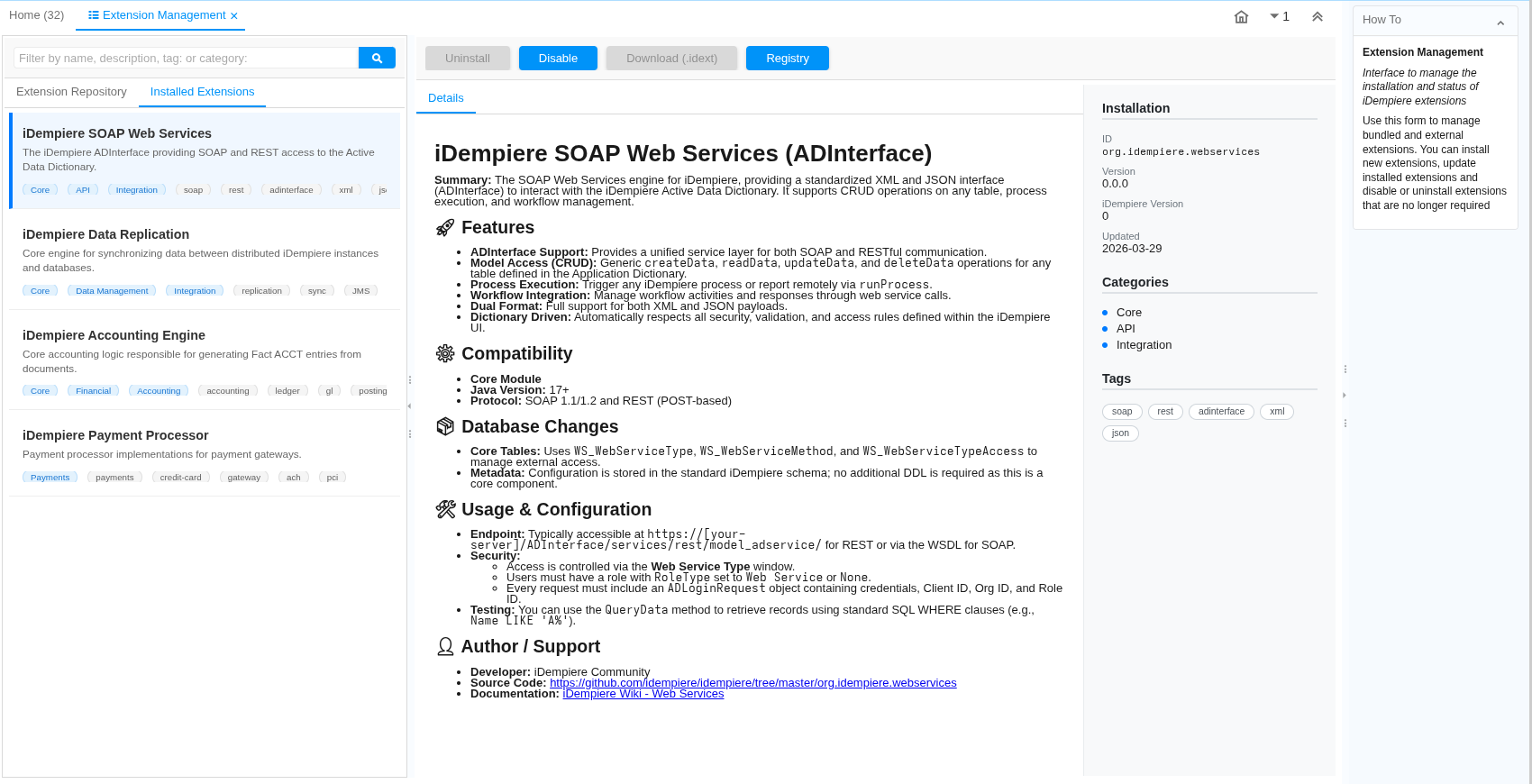
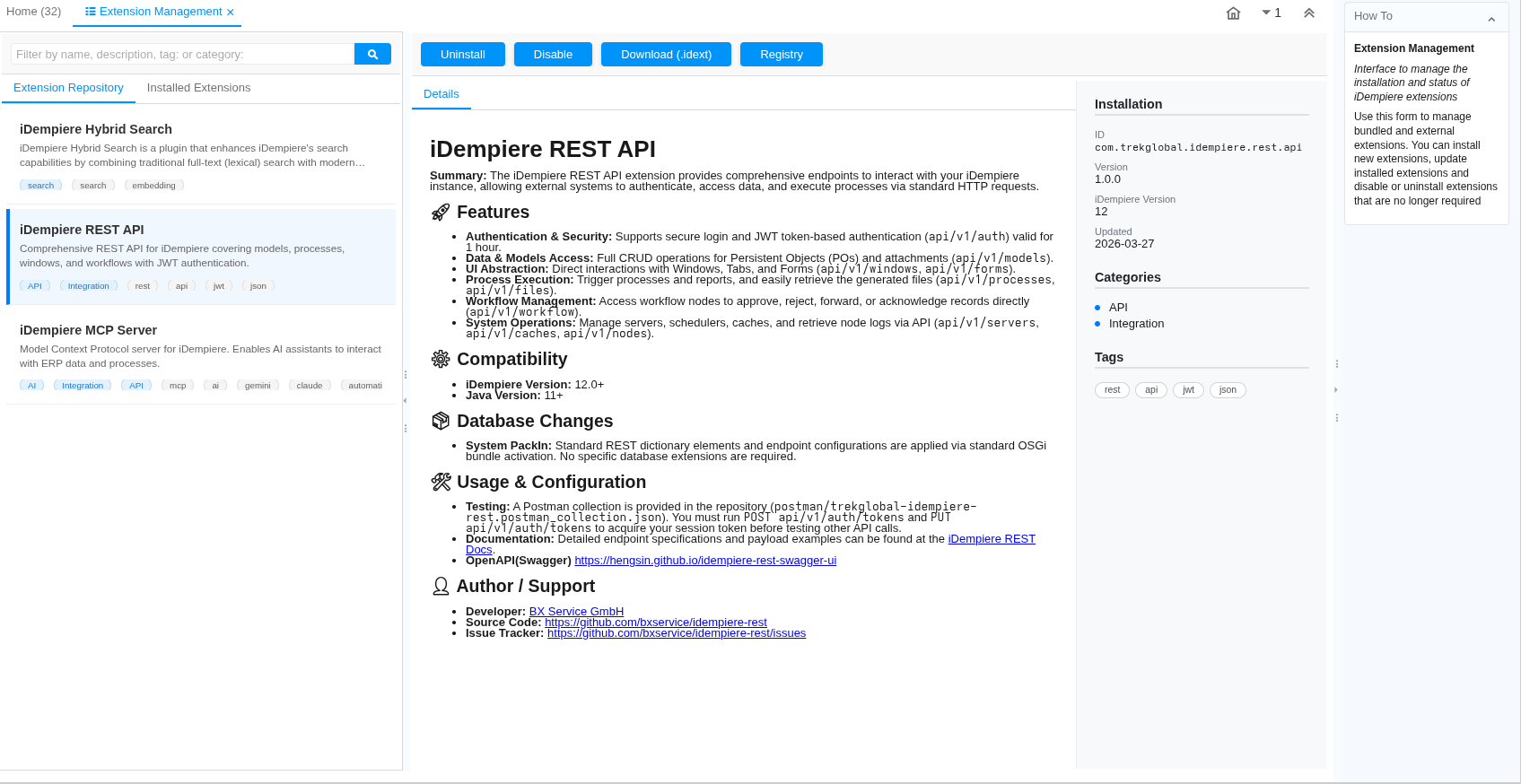
- Installed Extension: list extensions that have been installed locally.
- Filter text input: filter extensions by name or description. Use tag:
{filter text}to filter by tags and category:{filter text}to filter by categories.
- Right Pane:
- Toolbar to install, uninstall, enable or disable an extension.
- Download button to download an extension as an archive with .idext extension.
- Registry button to open the corresponding extension record in the Extension Registry window.
- Content area to display the details and change log (if available) of the selected extension.
- The content area includes a right sidebar to show some metadata of the selected extension.
- Left Pane:
-
Extension Form: Browse Available Extensions
-
Extension Form: Browse Installed Bundled Extensions
-
Extension Form: Browse Installed External Extensions
-
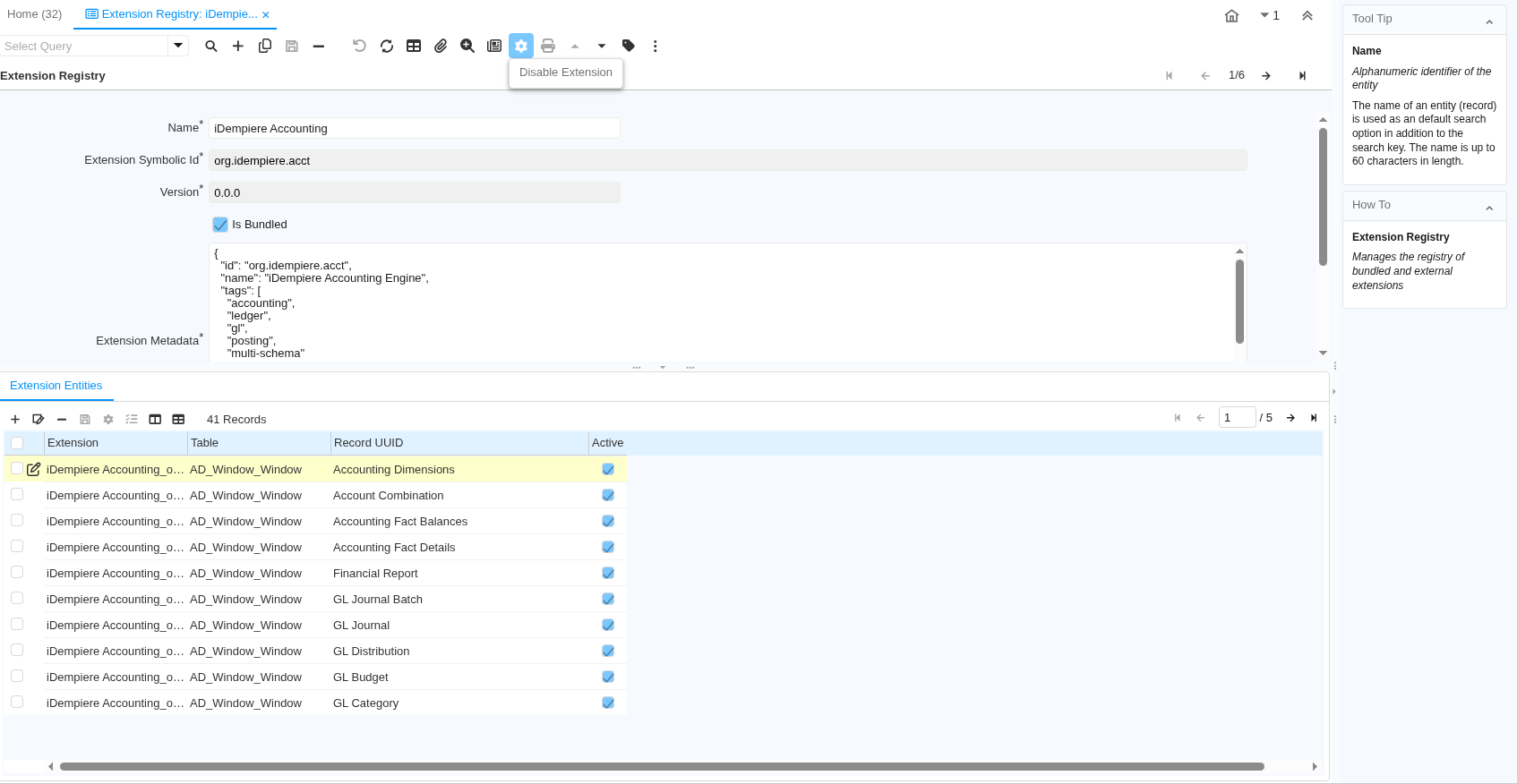
Extension Registry Window:
- View and manage installed extension.
- Header: Installed extension details (
AD_Extension) . - Detail: Database entities that are managed by an extension (
AD_ExtensionEntity). - Gear Dropdown: list of actions that can be applied to an extension (install, uninstall, disable or enable).
-
Extension Registry Window: Bundled Extension
-
Extension Registry: External Extension